Project collaborators (non-creators) now have the ability to edit a Vizi’s name for smoother teamwork and clearer organization.

The resurfacing workflow now splits application areas and material selection into dedicated panels. This clarification helps users choose appropriate options and improves background image resurfacing accuracy.

We introduced a new share panel on the project edit page, and all share panels now include a “View Presentation” option—so the old Present button in the top toolbar is no longer needed.

The shopping list cart within Vizi edit mode has been moved from the left toolbar to the top nav for improved visibility and workflow efficiency.

You can now rotate any object (furniture, decor, accessories) in your design with the new “Change Angle” control.

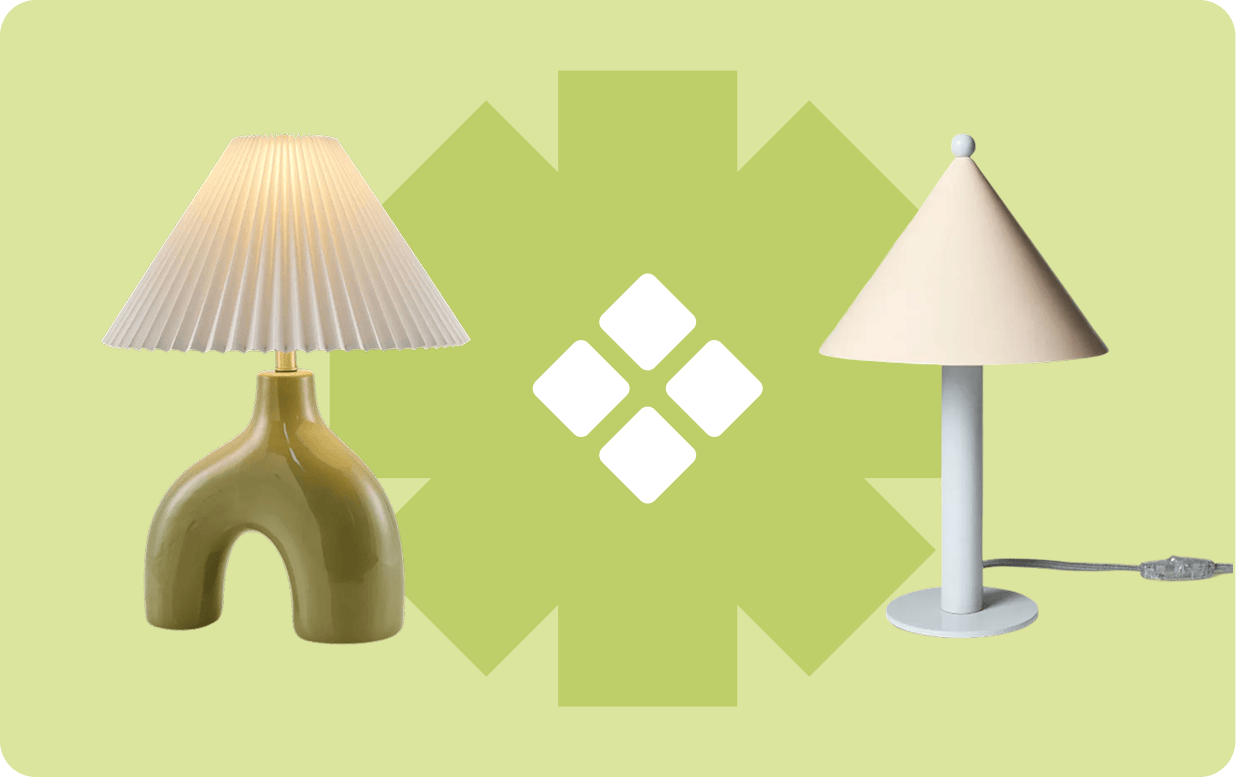
You can now change the material, finish, or texture of any object in your design with the new Magic Finish tool.
Select an object on your canvas → click Finish & Fabric → choose → pick the finish, material, or texture you want to update → click Apply Magic Edit.
Perfect for testing alternate fabric options, wood tones, metals, paints, and more — without sourcing multiple product images or relying on approximate color overlays.
Works on all product types (furniture, décor, lighting, rugs, and more).

You can now transform the background image of your Vizis using the new Magic Background Edit tool.
Quickly clear clutter, swap surfaces, or make targeted background adjustments with Spoak's Magic Edit controls — no manual masking required. Ideal for cleaning up room photos, testing new finishes, or creating polished design visuals in seconds.

We’ve enhanced how we process images when you add them to your Vizis . This update reduces the number of times the system fails to read an image correctly, meaning fewer upload errors, smoother workflows, and a more seamless editing experience.